
Designing a rigorous XLSForm is often the first obstacle field teams encounter. ODK Build removes this barrier by offering an intuitive graphical interface, usable without internet connection and without touching a single Excel formula.
What is ODK Build?
ODK Build is a free tool developed by the Open Data Kit (ODK) community, now maintained by Getodk.org. It is a visual editor for data collection forms that outputs a file in the XLSForm standard — the universal format read by KoboToolbox, ODK Collect, CommCare and most mobile data collection platforms.
Its main advantage: you build your form by drag and drop, without writing a single line of code or mastering XLSForm syntax. The application handles generating the .xlsx or .xml file for you.
ODK Build online vs. desktop version
ODK Build comes in two forms:
- Online version at build.getodk.org — accessible from a browser, requires an internet connection.
- Desktop version (Windows 32/64-bit and Mac OS) — installs on your machine and works entirely offline. This is the one I recommend for field use.
Discovering the interface
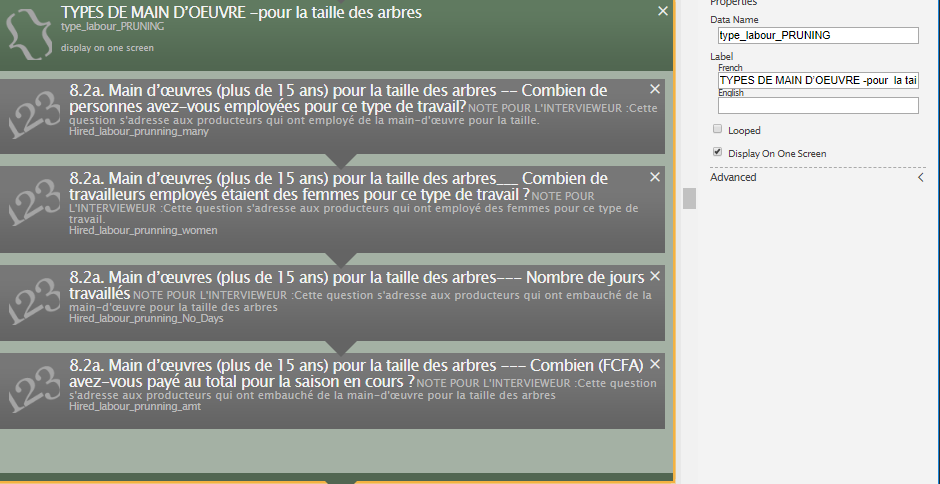
On first launch, ODK Build presents a clean interface divided into three main areas:
- The question type bar (top) — lists all available field types: text, number, date, image, audio, GPS, single-select, multi-select, etc.
- The build area (center) — drag and arrange your questions here.
- The properties panel (right) — shows the parameters of the selected question: label, constraint, display condition, etc.
The interface is intentionally simple. No technical training is needed to start using it.
Available question types
- Text — open question, free response
- Number — numeric field (integer or decimal)
- Select One — single-select list (radio)
- Select Multiple — multi-select list (checkboxes)
- Date / Time / Date and Time
- GPS Location — captures geographic coordinates (lat, lon, altitude, accuracy)
- Image / Audio / Video — captures media from the device
- Barcode — barcode or QR code reader
- Note — informational text displayed without input
- Group — groups questions into sections
- Repeat — repeating group (useful for household members)
For the vast majority of humanitarian and social surveys, these types cover 95% of needs. Advanced cases (cascading lists, complex calculations, geofencing) will require editing the generated XLSForm directly.
Building a form step by step
Click a question type in the top bar — a new field appears in the central area. In the right panel, fill in:
- Label: the question text displayed to the enumerator
- Name: the technical identifier (no spaces, no accents, e.g.
hh_head_name) - Hint: an optional note shown under the question
- Required: check if the question is mandatory
For Select One / Select Multiple, click Edit Choices in the right panel to enter options one by one. To organize your form into sections, drag a Group block and nest your questions inside it.
Exporting the form
Once your form is built, export it via File → Export to XLSForm. ODK Build generates an .xlsx file you can:
- Import directly into KoboToolbox (New project → Import XLSForm)
- Import into ODK Central or ODK Aggregate
- Open in Excel for advanced modifications (cascading lists, calculations, etc.)
Known limitations
- No cascading lists — filtered lists (Region → District → Village) require editing the XLSForm in Excel.
- No calculated fields — composite scores and date-based calculations need XLSForm syntax directly.
- No complex skip logic — simple display conditions are handled, but complex expressions must be edited manually.
- English interface only — form questions can be in any language, but the UI itself is English.
For advanced cases, I recommend starting in ODK Build then completing the XLSForm in Excel. This combination works very well in humanitarian and development contexts where teams have mixed technical profiles.
Full video tutorial
I recorded a French-language video tutorial walking through ODK Build step by step: installation, interface overview, building a complete form and XLSForm export. Subscribe to the Data Solution channel to stay up to date.
Conclusion
ODK Build is the ideal entry point for any team that wants to start mobile data collection without going through the technical hurdle. Within a few hours of practice, you can build professional forms, export them as XLSForm and deploy them on KoboToolbox or ODK Collect.
In the next article, we will see how to import this XLSForm into KoboToolbox and deploy it for field data collection.
Full ODK Build tutorial · Data Solution channel
Download and install ODK Build
Here are the direct download links by operating system:
Choose the version for your system:
- ⬇ ODK Build — Windows 64-bit (recommended for most recent PCs)
- ⬇ ODK Build — Windows 32-bit (older PCs)
- ⬇ ODK Build — Mac OS
Installation is straightforward: download the file, double-click it and follow the steps. No special configuration is required.